Send Local Music Files with Android Quick Share
At a glance
This detailed guide explores sending actual music files using Android Quick Share, highlighting the difference from sharing streaming URLs. Learn how recipients control file acceptance, where the music lands, and how to verify the results. Includes step-by-step transfer examples and key decision points for secure, efficient nearby file sharing - no cables required.
In this guide
- Quick Share: local files versus streaming links
- What control does the recipient have?
- How to send actual music files via Quick Share
- No need for cables: pure wireless workflow
- Example: sharing a favorite song at a party
- What does the recipient actually get?
- How to check your transfer: tips for both sender and recipient
- Next steps: practice with a sample file
Quick Share: local files versus streaming links
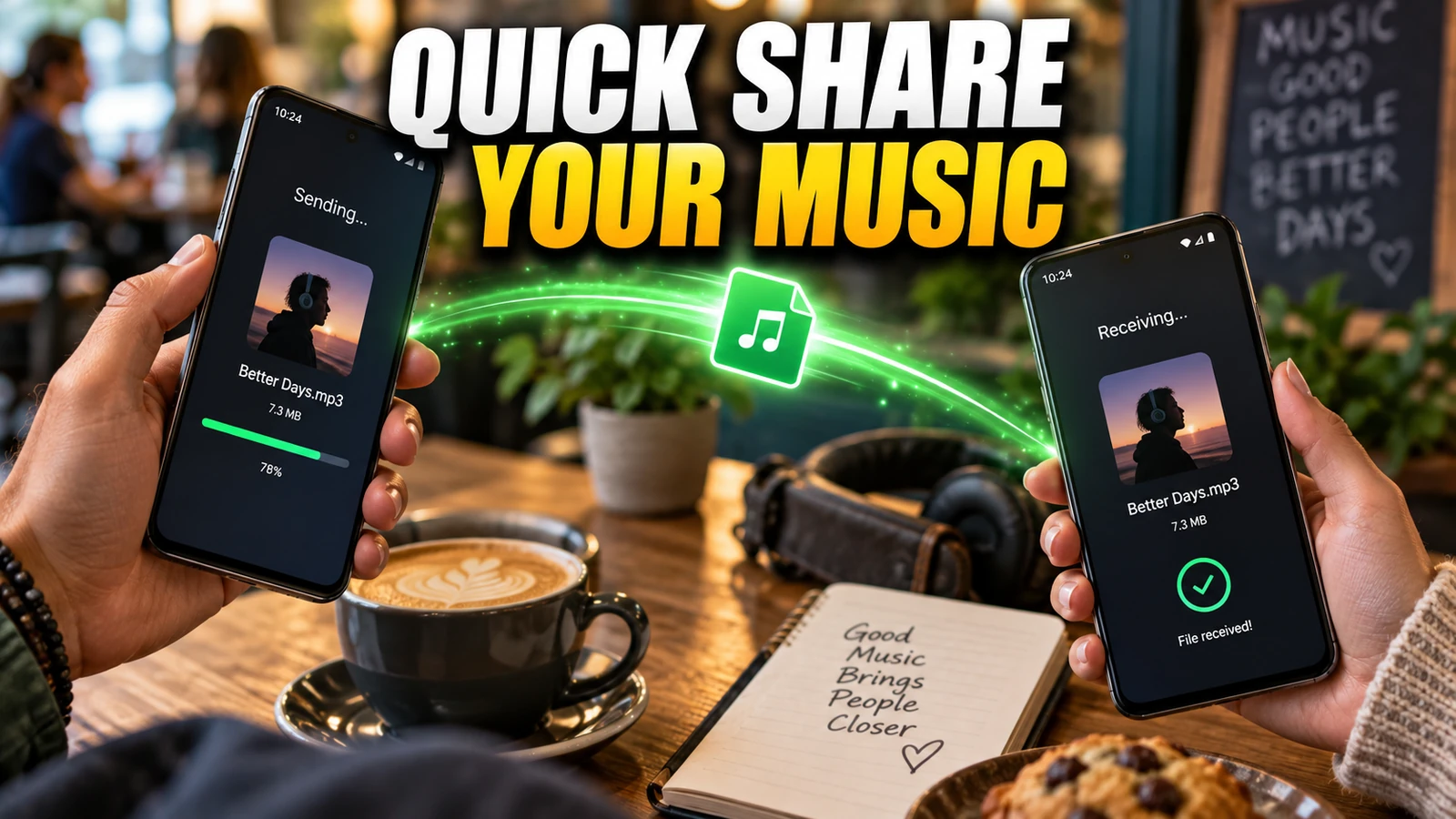
On Android, Quick Share allows you to transfer your own local music files directly to another nearby device, not just send a link to an online streaming track. This distinction is crucial: when you use an app's 'share' feature from a streaming service (like YouTube Music or Spotify), you often send a URL, allowing the recipient to play the track from the cloud. However, using Quick Share, you actually send the audio file stored on your device, granting the recipient an offline copy they can keep, play, or move as they wish.
Quick Share works on most Android 6+ devices, Chromebooks, and (with the Windows app) on some PCs. The sending and acceptance process is controlled by both devices - details and options are covered in Google's official Quick Share documentation.
What control does the recipient have?
Before a file is delivered, the recipient always sees a clear notification on their device showing who is sending and what type of file is being shared. They can accept or decline the transfer. This provides a safeguard against unwanted files and allows for a transparent, user-approved transfer process. If both devices are logged into the same Google account and set up for Quick Share, the process is streamlined and may auto-accept.
After acceptance, the music file lands in the Files app's Downloads > Quick Share folder by default. From there, users can organize, rename, edit, or play the music on their preferred app.
How to send actual music files via Quick Share
- Locate your local music file: Open your preferred file manager or music player that allows access to actual files on your device storage.
- Select the file: Tap and hold on the MP3 or audio file you want to send. Select multiple files if needed.
- Start Quick Share: Tap
Shareand chooseQuick Sharefrom the sharing options list. - Wait for nearby devices: Quick Share will scan for compatible nearby devices in "Receive" mode. Ask your recipient to enable this if not already visible in their Quick Share or Quick Settings controls.
- Choose the recipient: When the recipient's device appears, tap it to initiate the transfer.
- Recipient accepts transfer: The other device shows a pop-up with sender info and file type. The recipient must tap Accept for the transfer to proceed.
- Wait for transfer complete: File transfer status shows on both devices. Once complete, the recipient can play or manage the file in their device's Files app.
Note: If you are unable to find the recipient, you can use Quick Share's QR code feature. This allows the nearby recipient to scan and download the file securely even if they're not listed. Both Bluetooth and Wi-Fi must be on for both devices.
No need for cables: pure wireless workflow
Quick Share is specifically designed to avoid the need for USB cable connections, account logins, or uploads to cloud storage - you share files over a direct, encrypted local connection. This means you don’t need to plug devices together or fiddle with permission dialogs or cable formats. It also keeps your files local to the recipient, with transfer size limits generous enough for most music libraries (up to 1,000 files or 10GB per session when sending to iOS/macOS via QR code or web link).
Example: sharing a favorite song at a party
Example scenario: Emma wants to send her friend Lucas the MP3 of a song she recorded, stored on her Samsung Galaxy phone. They’re at a café without strong Wi-Fi or mobile data. Emma goes to her Files app, finds the song, taps Share > Quick Share. Lucas sets his phone’s Quick Share mode to "Receive". Emma selects Lucas’ device from the list. Lucas gets a notification: "Emma wants to share: song.mp3" and taps Accept. Once transferred, Lucas finds the file in Files > Downloads > Quick Share and plays it offline. No streaming app, no shared link - just the real file.
What does the recipient actually get?
The receiving device gets an exact file copy - metadata, file name, and audio quality are preserved. The file goes directly into the recipient’s Downloads > Quick Share folder, not just referenced via a web or streaming link. This allows the recipient to manage, move, or back up the file as they choose. They’re free to play it in any app that supports the file type (for instance, importing into a music library manager, or editing in a DAW).
How to check your transfer: tips for both sender and recipient
- After sending: Ask the recipient to confirm receipt. They should check Files > Downloads > Quick Share for the file, open it, and preview playback to ensure integrity.
- For critical files: Consider starting with a small test transfer before batching multiple tracks, to make sure both devices' settings are correct.
- Security & privacy: Transfers are end-to-end encrypted, and your device automatically leaves "Receive" mode after completing a share. The recipient always has acceptance control, and the sender gets notified of the delivery status.
For more on secure device-to-device transfers, compare Android Quick Share with Windows Nearby Sharing or review options for distributing music on disc.
Next steps: practice with a sample file
If you're new to Android Quick Share, practice with a small, non-essential music file between your devices or with a trusted friend. Confirm both sending and accepting work smoothly. Once comfortable, use it to share multiple songs, voice memos, or any local files quickly and efficiently whenever devices are nearby.