Audio CD or MP3 Disc: Which Should You Burn?
At a glance
Should you burn an Audio CD or an MP3 disc? This article compares both options for music playback and device compatibility. Learn how to decide based on your hardware, formats, and intended use, citing the latest Apple Music documentation. Includes practical tips, example scenarios, and guidance for verification.
In this guide
- audio cd and mp3 disc: key differences
- device compatibility: knowing what works
- capacity and quality trade-offs
- choosing the right format: questions to ask
- burning a disc with apple music on mac
- example: deciding for a family road trip
- verifying your burned disc before large batches
- check your device and start small
audio cd and mp3 disc: key differences
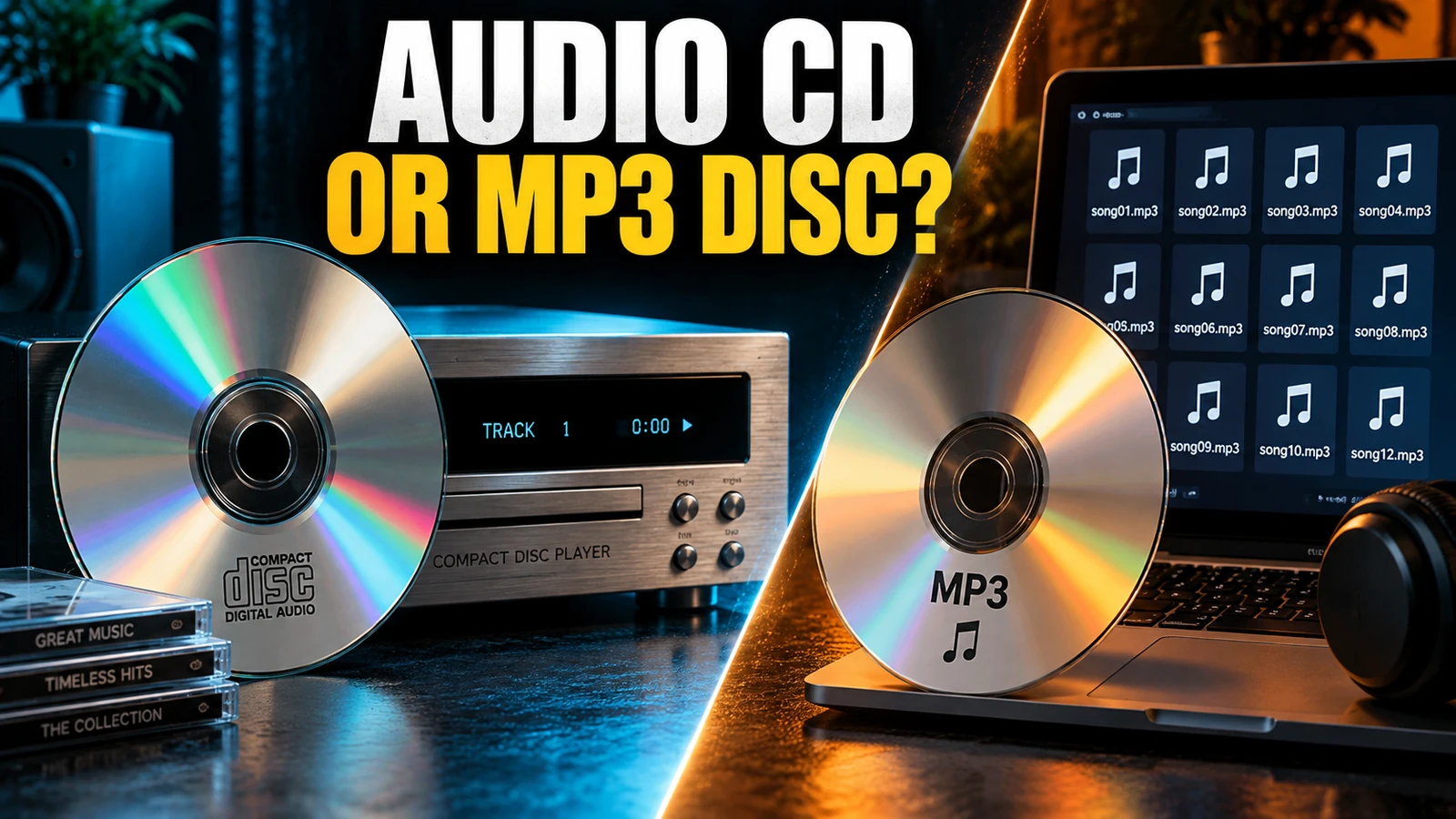
If you’re planning to burn music to a disc, you’ll face an important choice: Should you create an Audio CD or an MP3 disc? The answer depends on where and how you want to play your music. Audio CDs are designed for universal playback in standard CD players, including home stereos and most car CD decks. In contrast, MP3 discs are data discs containing compressed MP3 files, playable on MP3-compatible CD players and computers, but not on all traditional CD devices. Apple’s Music app for Mac supports creating both types (Apple Music Official Documentation), so it’s vital to select the format that matches your intended playback devices.
device compatibility: knowing what works
- Audio CD: Plays on almost any device labeled as a “CD Player,” including older car stereos, boomboxes, and hi-fi systems. No special file format for individual tracks is required; music is written in a universal format.
- MP3 Disc: Functions like a data storage disc with MP3 files. Only players that explicitly state "MP3 Disc" compatibility or personal computers with suitable software can read these discs. Many modern car stereos and newer CD players handle MP3 discs, but classic models do not.
When deciding, check the manual or the faceplate of your intended playback device. If there’s no mention of MP3 (or logos such as “MP3” or "MP3/WMA"), assume only Audio CDs will work.
capacity and quality trade-offs
- Audio CD: You’re generally limited to a maximum of about 74 to 80 minutes of audio (subject to disc and burning options) regardless of how small or large your music files are. All tracks are in standard CD Audio format, which maintains full sound quality but restricts how many songs you can include.
- MP3 Disc: Capacity is measured in megabytes (MB), not minutes. A typical CD can hold roughly 700 MB of files. Since MP3 files are much smaller than uncompressed audio, you can fit several albums (sometimes hundreds of songs) depending on file size and encoding, but playback depends on device compatibility.
There’s no universal guarantee that every disc will fit the same number of songs. For MP3 discs, the total depends entirely on the average size of your MP3 files, which is determined by the bitrate and song length.
choosing the right format: questions to ask
- What device will play the disc? If it’s an older CD or car stereo, stick to Audio CD.
- How much music do you want to include? If you need more than 15–20 songs, and your player supports MP3 discs, go with MP3.
- Is sound quality a main concern? Audio CDs use the original CD quality. MP3s are compressed, with some loss of quality - though high-bitrate MP3s (e.g., 256 kbps or higher) sound excellent to most listeners.
- Is track order or album division important? Both disc types maintain playlist order if set before burning, but Audio CDs offer seamless playback and separate track gaps, while MP3 Discs may interpret folders or filenames as playback sequence.
burning a disc with apple music on mac
- Open the Music app on your Mac.
- Create a new playlist containing only the songs you want to burn.
- Select the playlist in the sidebar.
- Insert a blank CD into your drive.
- From the File menu, select Burn Playlist to Disc. If this option is unavailable, your playlist contains songs with usage restrictions or unsupported formats.
- Choose your Disc Format: Audio CD or MP3 CD. If burning an MP3 CD, ensure all playlist songs are in MP3 format; otherwise, convert files as needed.
- Set your preferences (recording speed, track gaps, volume options, CD Text) if creating an Audio CD. For MP3 CDs, options are more limited.
- Click Burn and wait for the process to complete.
For more detailed options, see the current Apple Music instructions for creating discs on Mac.
example: deciding for a family road trip
Example: Jamie wants to make a music disc for a family road trip. She checks her car stereo’s manual and finds only “CD Audio” compatibility - no mention of MP3. Because everyone wants a mix of their favorite songs, Jamie faces a choice:
- She can fit about 18 songs on a regular Audio CD, ensuring it plays in her car, but needs to make a few different discs for everyone’s preferences.
- If her player supported MP3 discs, she could combine over 120 songs in MP3 format onto a single disc, making it less likely anyone gets bored. But since her stereo is classic, she chooses several Audio CDs, double-checking track order before burning.
verifying your burned disc before large batches
- After burning, test the disc in your intended player or computer. Don’t burn a full batch of discs until you confirm playback functions as expected.
- For MP3 discs, check that folders and filenames appear logically, and song order matches your playlist.
- With Audio CDs, confirm on the player’s display that tracks show up as expected (with titles, if "CD Text" was enabled).
check your device and start small
Before committing to burning multiple discs, verify what formats your playback device supports. Review device manuals or official support sites. Start by burning a single-disc test project in your preferred format, and check compatibility with your target player. For transferring files directly, consider options like sending music files with Quick Share or Windows Nearby Sharing if the recipient’s device doesn’t support disc playback - these can be more flexible for modern digital music libraries.