Choose Speakers or Headphones for Music in Windows 11
At a glance
If music on Windows 11 suddenly redirects to HDMI or Bluetooth devices, you can regain control over audio output. This article explains how to reliably identify, choose, and test your preferred playback device using one local track - with helpful, step-by-step guidance and example scenarios.
In this guide
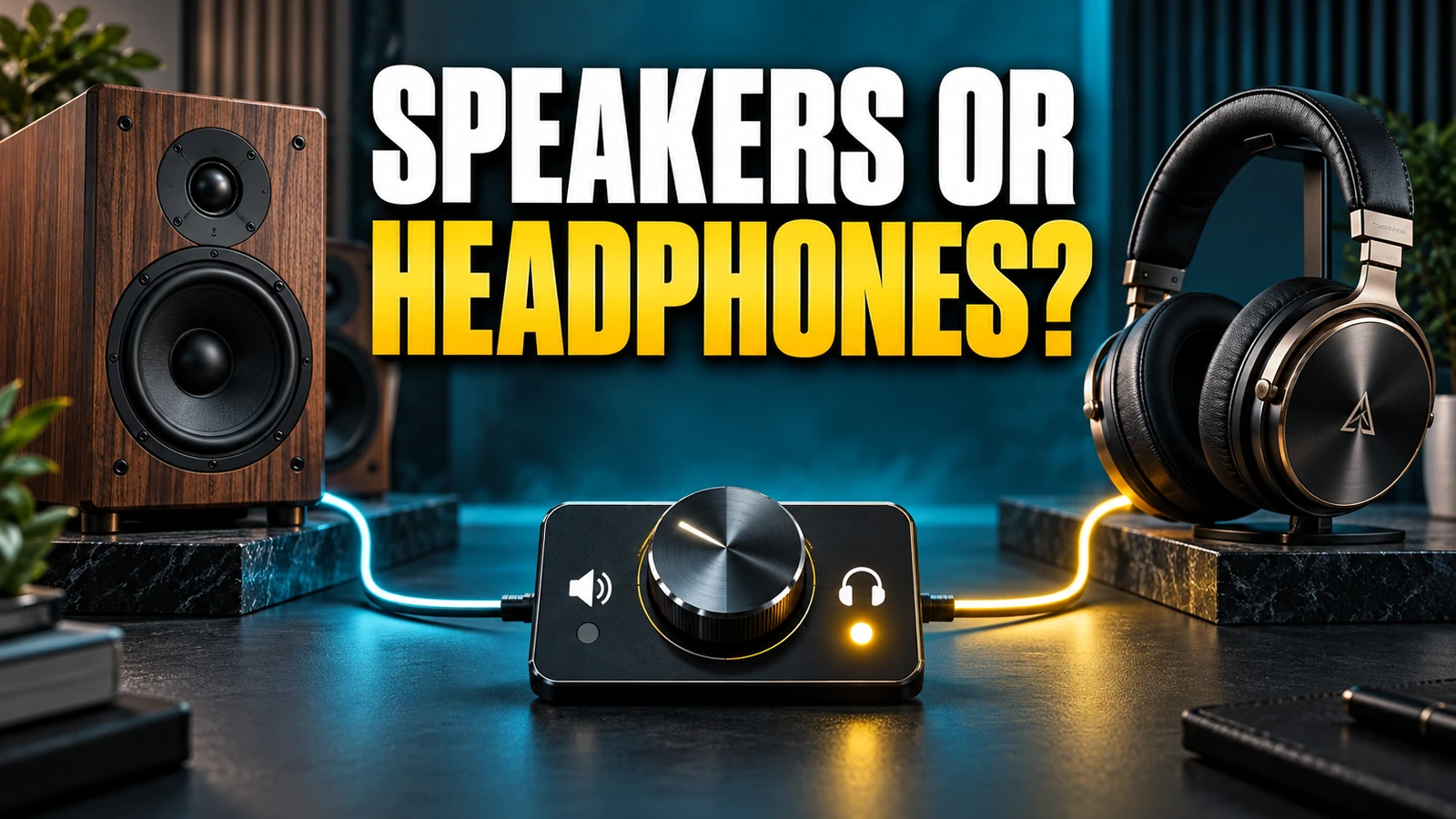
When you play music on a Windows 11 PC, sometimes connecting a device - such as an HDMI monitor or Bluetooth speaker - unexpectedly grabs control of audio output. If your music stops coming through your usual speakers or headphones, it’s likely because Windows automatically selected a new device as the output endpoint. To regain control and ensure your music plays where you want, use Windows’ sound settings to systematically identify devices and choose your preferred output. This guide walks you through the process using a local MP3 track as a test case.
Why Windows 11 Changes Audio Output
Windows 11 is designed to switch audio output to newly connected devices, such as HDMI monitors or Bluetooth headphones. This smart feature can be helpful when you want to use a specific device but can be disruptive if, for example, plugging in an external display silently reassigns music output from your desktop speakers to the monitor’s (possibly silent) speakers. Microsoft recommends ensuring your preferred device is selected if output changes unexpectedly (source: Microsoft audio troubleshooting).
Identifying Active Audio Devices
Before troubleshooting further, it’s worth confirming which devices Windows presently considers available for output. Follow these steps:
- Click the speaker icon in the Windows 11 taskbar (usually at the bottom right). If the icon is hidden, click the caret (up arrow) to show more icons.
- Click the arrow > to the right of the volume slider. Hovering will show 'Select a sound output'.
- Review the list of audio devices. Each connected device (e.g., 'Speakers', 'Headphones', 'Monitor (HDMI)') should be listed here. The one with a check mark is currently active.
This menu allows for quick endpoint selection, especially convenient after HDMI or Bluetooth devices have taken over.
Choosing Your Preferred Output Device
To explicitly select where your music should play:
- With the sound output list open (from the previous section), click the name of your desired device (e.g., 'Speakers' or 'Headphones').
- Audio, including music, will now output through the selected device.
This sets your choice immediately as the preferred output - overriding the automatic selection caused by connecting an HDMI or Bluetooth device. For persistent problems, or to manage devices with more detail (such as renaming or disabling), open full sound settings:
- Right-click the speaker icon in the taskbar.
- Select Sound settings.
- Under Output, view all available devices.
- Select your desired default device.
This approach is particularly useful if you have multiple similarly-named endpoints. For deeper investigation, see the device list under 'Settings > System > Sound > More sound settings'.
Systematically Testing Output with a Local Track
To ensure music is actually playing from the intended device, use a known local MP3 file for verification:
- Open a music player (such as Windows Media Player or Groove Music).
- Play your test MP3 file.
- As you select different output devices from the taskbar menu, you should hear audio reroute in real time.
This avoids confusion about whether a particular output device is silent due to a player or streaming service issue, and gives you confidence your music is directed exactly where you want it.
Example Scenario
Example: Elise listens to music through her desktop speakers. After connecting her laptop to a TV with HDMI to watch a movie, music playback is silent. Checking the output device list, she sees 'LG TV (HDMI)' is now active. By clicking her 'Speakers' from the list, music resumes through her original speakers. She plays a local song to confirm the change.
Advanced Settings and Troubleshooting
If the device you want doesn't appear, or the wrong one persists as default, check Windows' full audio configuration (see official guide):
- Navigate to Settings > System > Sound.
- Scroll to the Advanced section and click More sound settings.
- The classic Sound control panel appears. On the Playback tab, right-click your preferred device and select Set as Default Device.
- Play your test MP3 again to confirm output lines up with your selection.
If output still won't follow your selection, updating your audio drivers may help. You can review driver update steps on the same Microsoft support page linked above.
Special Cases: Bluetooth and HDMI Interruptions
Bluetooth headphones that connect after music has started may take over as the default endpoint. Likewise, some HDMI monitors without speakers may still be set as output, resulting in silence. If this happens, review the device list and reset your preference as shown above. For hardware-specific controls (such as USB audio interface selection), use the device's provided software or the Windows classic panel 'Sound' to adjust further.
Next Steps
Now that you know how to identify and choose your audio output, try playing a sample song and observe how the output follows your selections through each connection and disconnection. For related tips on handling audio on other platforms, see how to preview files on Mac or explore listening in mono on iPhone. For persistent Windows audio issues, consult the official Microsoft troubleshooting page. The next time HDMI or Bluetooth diverts your music, a quick check of your output selection puts you back in control.