Listen with Mono Audio on iPhone
At a glance
Learn how to easily enable mono audio output on your iPhone, ideal if you prefer to hear both stereo channels combined over one ear. Covers step-by-step directions for iOS, safe adjustment methods, fictional use cases, and practical verification tips. No re-encoding or file changes are required.
In this guide
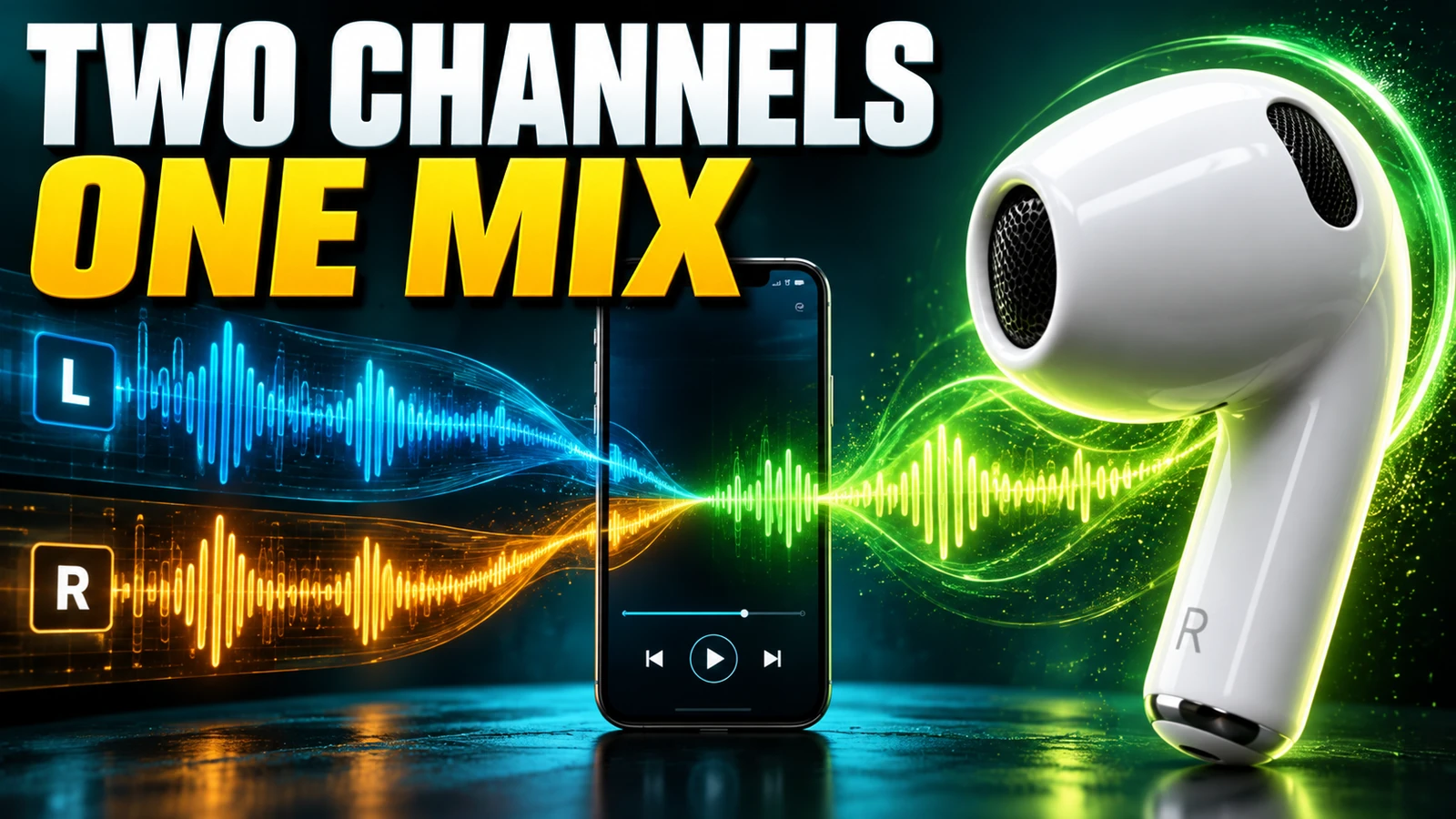
Listening to music in mono on your iPhone ensures you hear all parts of a track through just one ear or speaker. This is ideal when using a single earbud, sharing a device, or if you want both left and right audio channels combined for any reason. You can enable mono output and adjust the audio balance directly in iOS accessibility settings - with no need to modify your music files or re-encode anything. This article explains how to enable mono audio and adjust output balance using built-in iPhone settings, using Apple’s official iPhone User Guide for iOS 17 and later as reference.
Understand mono output on iPhone
Stereo audio separates sound into left and right channels. On headphones, effects or instruments may be audible in only one ear. Mono output merges these channels so both ears hear all the audio content (not just one channel). This feature is helpful if:
- You use a single earbud.
- You share headphones with another listener.
- You prefer all musical parts combined in each ear.
- Device placement means only one speaker is audible.
Importantly, enabling mono audio on iPhone does not change or re-encode your music files - it's an output setting affecting only device playback for headphones, speakers, and connected Bluetooth audio.
Enable mono audio in iOS settings
- Open the Settings app on your iPhone.
- Tap Accessibility.
- Scroll to Audio/Visual (under the 'Hearing' section).
- Find the Mono Audio switch and turn it ON (green).
Once enabled, all audio output from your iPhone will play in mono, meaning both left and right channels are played through each ear or speaker. This is a global setting - including music, video, and phone audio.
Adjust the left/right audio balance
iOS also allows you to change the audio balance to favor the left or right channel further, even with mono output enabled:
- In Settings > Accessibility > Audio/Visual, locate the Balance slider.
- Move the slider left (L) or right (R) to increase output in that channel.
- Set the slider to the center for equal output to both sides.
This tool is especially helpful if your headphones or earbuds have uneven outputs, or if your preferred ear or speaker needs extra volume.
Example: Personalizing mono output for shared listening
Example: Jane and her friend Alex often share wired earbuds on walks, each using a single side - Jane on left, Alex on right. Some songs have lead instruments panned to only one ear, so they’re missing parts of the music. Jane opens Settings, enables Mono Audio, and checks the Balance slider is centered. Now both can enjoy the full mix from either earbud, regardless of song’s stereo mix.
Verify your mono output setting
- Play a stereo track that has a clear difference between left and right channels (for example, a classic rock or jazz song with solo guitar panned left and vocals panned right).
- With mono enabled, listen to each earbud separately - the full audio should be present in both.
- Temporarily toggle mono audio off to compare; now some sounds will only be in one ear.
To test further, adjust the Balance slider and note how the output changes. If you notice a channel is still missing, ensure your headphones are working and securely connected. Doing this with a short clip or sample playlist is safest before relying on it for full-length listening sessions.
When should you use mono output?
Mono output is best for personal preference or for maximizing the listening experience in practical scenarios:
- Using a single Bluetooth earbud or wired earpiece
- Sharing headphones but wanting the full sound for both listeners
- Needing all details in music, audio apps, or phone calls regardless of device orientation or environment
- If you simply prefer mono sound for podcasts or spoken-word content
This flexibility means you don’t need to edit tracks or convert audio formats - just adjust the output setting. If you’re interested in more ways to enhance your listening experience - such as repeating a song section for music practice - see our detailed VLC A-B Repeat guide.
Additional tips and considerations
- Mono output is device-specific; enabling it on iPhone won’t affect tracks played elsewhere.
- If you create playlists or music tracks for others, encourage them to use device accessibility settings, not file conversions.
- For certain phone headsets or car systems, mono output may improve voice clarity.
- For more on iPhone audio settings, refer to the official Apple documentation.
- Interested in controlling playback speed for practice sessions? Check out our article about slowing playback for music practice.
Next steps: Explore more accessibility options
Now that you’ve set up mono output and balance on your iPhone, experiment with other accessibility tools - like display adjustments, system volume, or spatial audio - to further personalize your listening. Regularly check your output with different headphones and speakers to ensure your settings work as intended. Always use the official iPhone User Guide or Help resources when you update iOS to discover new features and audio controls.