Loop a Song Section with VLC A-B Repeat

At a glance
This guide covers how to temporarily loop a chosen song segment in the VLC Android 3.5 app using A-B repeat, without altering your original file. You'll get practical steps, tips for practice use, and advice on troubleshooting common limitations. Examples and related resources included.
In this guide
Musicians, language learners, and avid listeners may need to repeat a short span of a song or audio track while practicing or memorizing. On Android, VLC version 3.5 provides a handy feature: the A-B repeat function, which lets you select any segment between two custom points and play it repeatedly. This does not slice or export an edited file; your original audio remains untouched, and the loop is purely for temporary playback.
When and why use A-B repeat?
A-B repeat is ideal for repetitively practicing a tricky musical riff, learning language phrases, or analyzing any repeated audio detail. Unlike manual rewinding, the loop is seamless and hands-free after setup. This saves time and makes repetitive practice far less tedious.
Accessing the VLC Android player
First, ensure you are using VLC for Android version 3.5. VLC is freely available on the Google Play Store. Confirm your installation is up to date to guarantee that all referenced features are present, as some controls change between versions. The basic player controls appear at the bottom strip of the app when you play a track. Tap this strip to reveal the full audio player interface, including advanced options (as described in the official VLC 3.5 docs).
Steps to loop with A-B repeat
- Start playback: Open your desired song or audio file in the VLC Android app. Begin playback so you can find the section you want to loop.
- Access More Options: In the top right corner of the player, tap the Options (⋮ or the three-dot icon).
- Set the A marker (start point): Look for the A-B repeat option in the list. Tap SET START POINT at the exact position where you want the loop to begin.
- Set the B marker (end point): Let the audio play (or use seeking controls) until you reach the desired end of your loop. Then tap SET END POINT. VLC will now automatically return to the A marker whenever it reaches the B marker, creating a continuous loop.
- Clear markers to disable: When you’re done looping, tap the remove markers button within the A-B repeat controls. Playback will continue normally.
Example: Practicing a tricky guitar solo
Example: Imagine you’re practicing a guitar solo that starts at 2:15 and ends at 2:28 in your favorite rock track. You want to loop just this segment without needing to scrub back every time.
- Play the song and use the
Jump to timefeature or manual seeking to get to 2:15, then tap SET START POINT. - Let it play to 2:28, then tap SET END POINT.
- The solo will now repeat automatically until you choose to remove the markers, letting you focus fully on playing.
This approach works equally well for language learners wanting to repeat a phrase, or anyone needing to analyze a small segment multiple times.
Temporary nature and good practice
It’s important to note that this feature only affects playback within VLC on your device. Your original audio file is left unchanged; no copy or cut takes place. When you leave the player or reset the app, A-B markers are cleared. For peace of mind, play the segment all the way through once before persistent practice to ensure that the loop covers the intended range.
If you intend to keep a segment in a new file, you’ll need a separate app for editing and saving - a different workflow than A-B repeat.
Using other playback controls with A-B repeat
While looping is active, you can still:
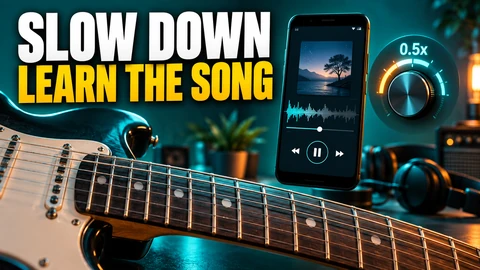
- Adjust playback speed up or down for slowing tricky phrases, as explained in this related guide.
- Set an equalizer preset to make a part of the song stand out.
- Use the sleep timer, which will shut playback after the chosen period – potentially useful when using loops to wind down.
However, avoid activating shuffle or switching tracks, as these disrupt the loop and clear A-B markers.
Troubleshooting and tips
- Not seeing the A-B option? Ensure you’re using the full player view, not just the bottom strip or a notification control.
- Markers set at the wrong time? You can reset the process by removing markers and repeating the steps above.
- Short loops might not play absolutely seamlessly due to device buffering variances; if you notice a hiccup, experiment with slightly wider loop boundaries.
- If you lose the loop after closing VLC, just repeat the setup steps after reopening the song.
For restoring audio when something goes wrong in other music apps, see this troubleshooting resource.
Next steps
Ready to drill that song passage or language phrase? Open your audio in VLC for Android 3.5 and try the A-B repeat on a short section. Test the markers on a snippet to check transition smoothness before longer practice sessions, and combine with playback speed controls for even more focused improvement.