Slow Song Playback for Music Practice in VLC
At a glance
Master temporary song slow-down for music practice in VLC for Android. This guide details accessing the playback-speed slider, temporary changes, and returning to normal speed - all without altering original files, so you can listen and practice safely.
In this guide
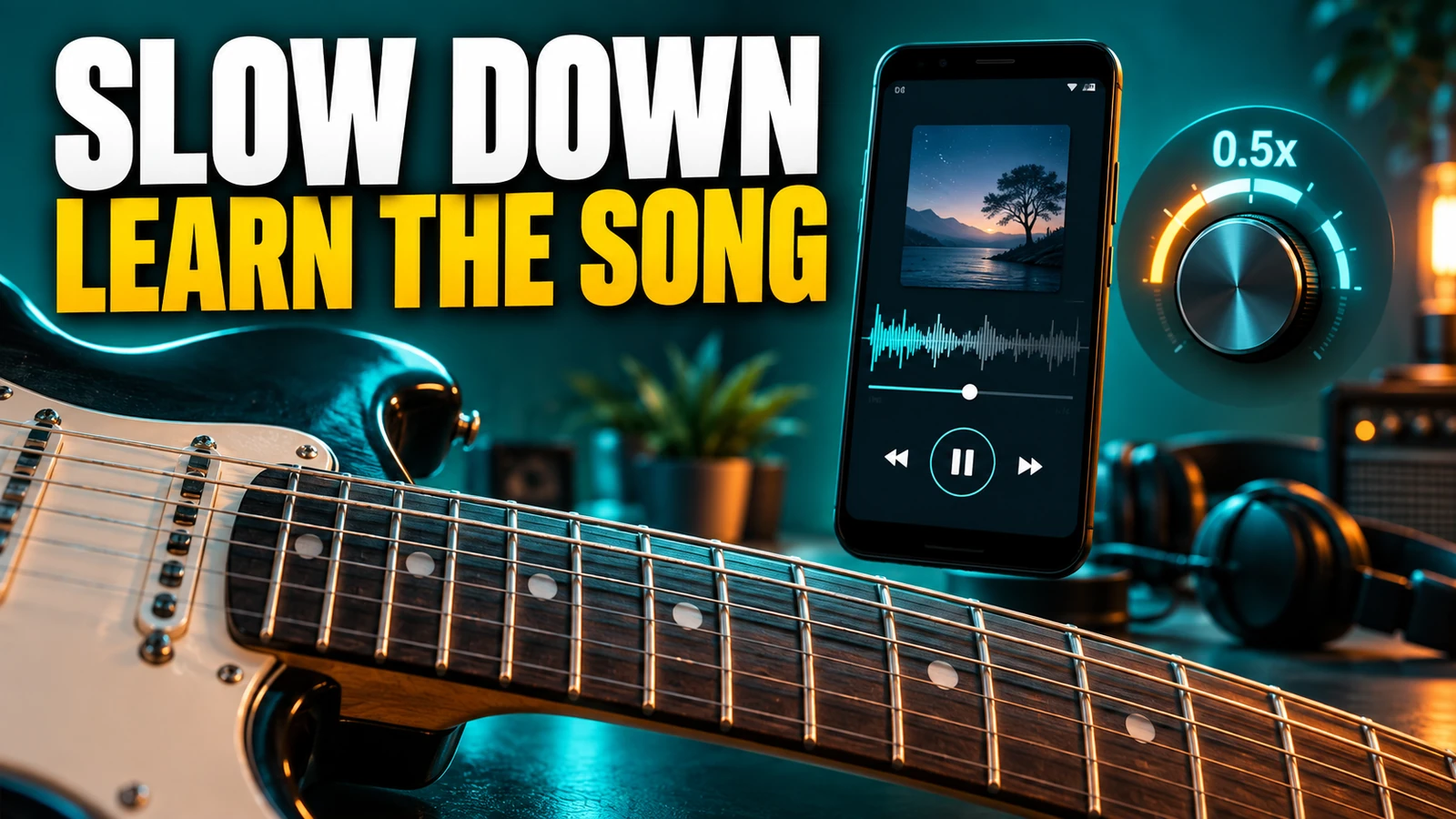
Can you slow down a song for music practice in VLC for Android? Yes, VLC for Android’s built-in playback-speed slider lets you temporarily reduce playback speed from as low as 0.25x up to 4x, right on your device. This is ideal for learning tricky song parts - without permanently altering your music files.
why use temporary playback speed?
Slowing down a song is a common practice method for musicians aiming to master complex passages. A key benefit of VLC for Android’s speed control is that any speed change is temporary and playback-only: the original file remains untouched. You can listen, practice at a manageable pace, and restore the default speed instantly - no risk to your actual mp3 or audio file.
locating the playback speed slider
VLC’s playback-speed controls are not visible during casual listening, so here’s how to find them based on the official VLC for Android documentation:
- Open any audio track in VLC for Android.
- Tap the player strip at the bottom of the screen to bring up the audio player interface. (A small player strip appears whenever something is playing.)
- In the top-right corner, tap the Options button (three dots).
- From the options list, select Playback speed.
- Use the slider or arrow buttons to adjust speed from 0.25x (very slow) to 4x (very fast).
Any change you make here affects playback instantly but is only temporary and specific to VLC’s current session.
temporary changes - your file stays safe
Some apps or audio editors can permanently alter files, but VLC for Android’s speed function never writes changes to the audio. If you close VLC or play another track, your original music files remain untouched. Even while playing, switching speed settings is risk-free.
For music practice, this means you can slow a passage, repeat it as often as needed, and be confident the original remains perfect. For more about checking sound output devices or restoring sound if it goes missing, explore guides like Choose Speakers or Headphones for Music in Windows 11.
practising a song phrase: step by step
- Open the song you want to practise in VLC for Android.
- Find the section or phrase you want to work on - use the seek bar or the "Jump to time" option under Options for precise navigation.
- Slow down playback: Access the speed slider and move it until the song plays at a comfortable learning pace. Most musicians start at 0.5x or 0.75x for tricky runs.
- Listen and play along, gradually increasing speed as your skill improves.
- Reset to normal speed anytime by returning to the playback-speed slider and setting it back to 1.0x.
example: practising a fictional song phrase
Scenario: Alex wants to learn the guitar solo in the song "Starlit Avenue." Using VLC for Android:
- Alex opens "Starlit Avenue.mp3" in VLC.
- He skips to the 2:13 mark where the solo begins, using the seek bar.
- Alex taps Options → Playback speed, dragging the slider to 0.65x.
- He practises along with the slowed solo, playing and rewinding as needed.
- Once confident, Alex slides the speed back to 1.0x and checks if he can keep up at original speed.
This routine does not change the original "Starlit Avenue.mp3" - the slowdown is only temporary, and all settings revert when playback is stopped or reset.
returning to normal speed
To restore the original song tempo, open Options, select Playback speed, and reset it to 1.0x. VLC does not revert automatically, so always check the playback speed bar if something sounds off when re-listening. No other steps are needed, and your track will sound exactly as before.
reminders for effective practice
- Use the playback-speed slider only for temporary practice needs.
- For looping a tricky passage, combine the speed tool with the "A-B repeat" option under Options - no need to reset position every time.
- Practice small sections at slow speed first; then raise toward 1.0x as your confidence grows.
- Check your device’s volume and output if you encounter sound issues; read this troubleshooting article for practical help.
next steps for musicians
The next time you need to work through a challenging part of a song, open VLC for Android, experiment with the playback-speed slider, and experience how much easier learning becomes. For advanced practice, try setting A-B repeat points to loop smaller sections while also reducing speed. As always, verify changes on a short section before regular practice, and enjoy mastering every riff at your own tempo!