Restore Sound in a Muted Music App on Windows 11
At a glance
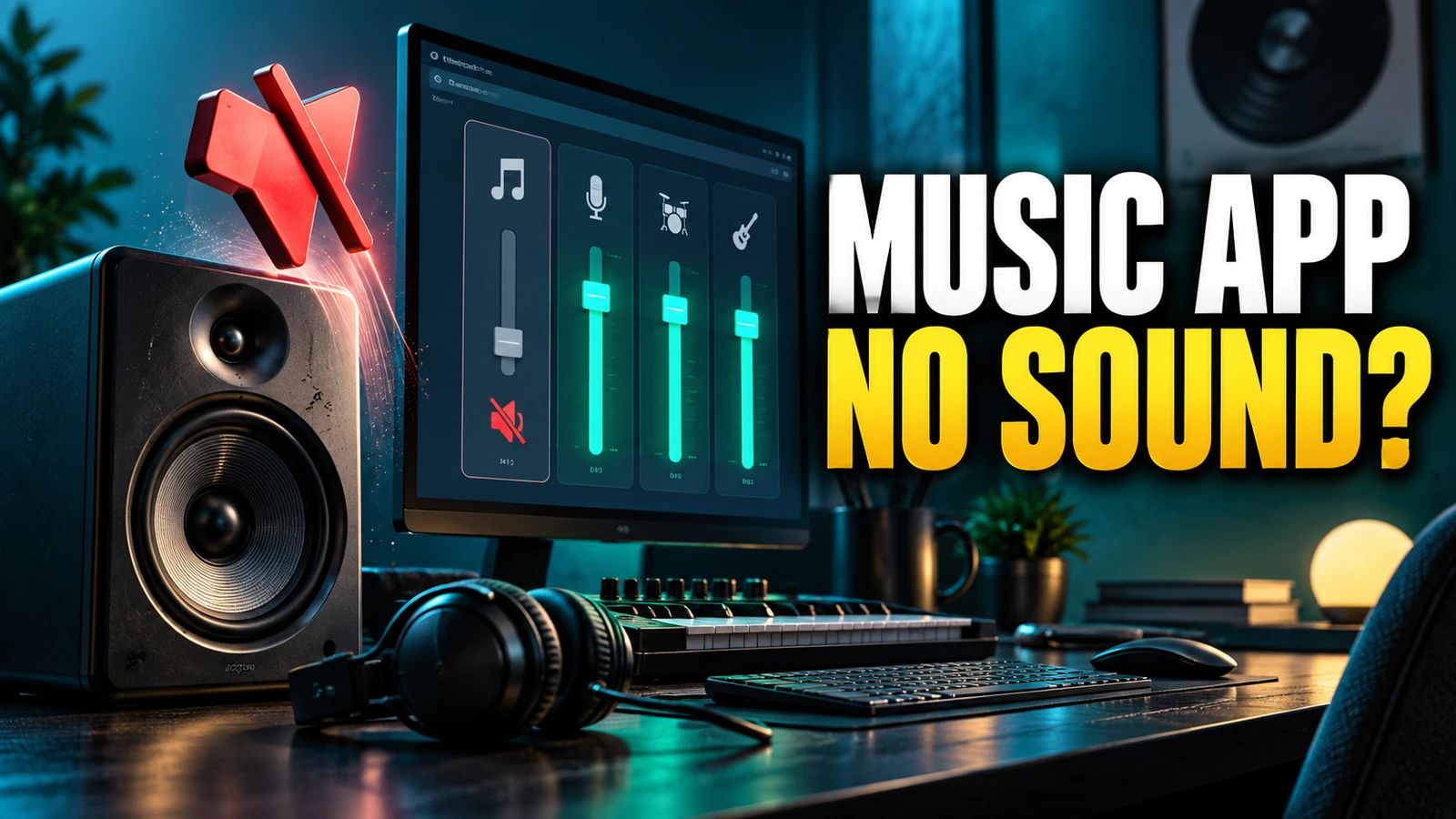
If your music app is silent on Windows 11 but system sounds work, start by checking its volume in the Volume Mixer and confirming the correct audio output. Explore app-specific settings before restarting audio services. Avoid drastic driver changes first and always confirm fixes using a test file.
In this guide
If your favorite music app on Windows 11 suddenly goes silent while system sounds (like notifications) still play, it’s often due to an app-specific volume or output setting - and not a hardware or system-wide audio failure. You can usually restore sound to that music player quickly, without reinstalling drivers or changing all your audio settings.
Find and fix app volume in Volume Mixer
Windows 11 allows each application to control its own audio volume, independent of the overall system volume. If your music player is accidentally muted or its volume is turned down in the Volume Mixer, you’ll hear everything else except the player itself.
- Right-click the volume icon (speaker) on the right of your taskbar.
- Select Open Volume mixer from the menu.
- Under Apps, look for your music app (such as Spotify, Groove, VLC, or another player). Ensure its volume slider is not all the way down or muted (a red slash will indicate mute).
- Slide the app’s volume up and test for audio, pressing play on a song.
If the app isn’t visible, make sure it’s currently playing or paused rather than closed, as the mixer only shows running audio apps.
Details on the Volume Mixer approach are found in the official Microsoft guidance.
Double-check app audio output device
Windows 11 supports sending different applications’ audio to different playback devices (for example, your music app to headphones and system sounds to speakers). If your player is set to an output that’s currently disconnected or muted, you won’t hear music even if Windows sounds work.
- Open Volume mixer again as above.
- For your app, find the Output device selector (typically a dropdown next to the volume slider for the app).
- Verify it matches your intended device (such as "Speakers (Realtek)", "Headphones (USB)", etc.).
- If not, change it to your active device and test the app’s playback.
If you use multiple outputs on Windows 11, each needs separate checking.
Verify system's default playback device
Sometimes, system sounds route through the default device even when apps are directed elsewhere. It helps to check if your main device is still default:
- Right-click the volume icon and select Sounds.
- Open the Playback tab under the Sound window.
- Ensure your everyday speakers or headphones are set as Default (marked with a green check).
- If needed, select your device and then click Set Default.
- Revisit Volume mixer and confirm the music app now uses this device.
Example: Checking the settings – A realistic scenario
Example: Imagine Jamie notices Spotify is silent after unplugging headphones, but YouTube videos in Chrome play sound as usual.
- Jamie right-clicks the volume icon and opens Volume Mixer. Spotify’s slider is visible but turned down low, possibly from a previous adjustment.
- Jamie turns the Spotify volume up. Still no sound.
- Next, she sees that Spotify is set to "Headphones (USB)" in the Output device dropdown, but her headphones are unplugged. She changes it to "Speakers (Realtek)", matching Chrome’s output.
- Music resumes playing through the speakers. Jamie didn’t need to update drivers or reinstall Spotify.
This approach works for most modern music apps - and for video players - on Windows 11.
Restart audio services as a last non-invasive step
If adjusting the app’s volume and output device doesn’t solve the problem, a temporary glitch in the Windows audio service could be the cause. Carefully restart only the relevant services using the following:
- Type services.msc in the Start menu and open it.
- In the Services window, right-click Windows Audio and select Restart.
- Right-click Windows Audio Endpoint Builder and restart it, too.
- Reopen your music app and test for restored sound.
This method won’t affect your other system settings or files, and is recommended by Microsoft before any drastic driver or registry changes.
Test with a simple audio file
Before making any system-wide changes, verify the problem isn’t with your music app’s current file or stream. Open a small MP3 file in the music player to check if standard files play; this can help confirm that the app and output are working together. For advice on previewing audio files quickly, see how to preview audio with Quick Look on Mac (if you use multiple systems).
Move forward carefully
After checking these settings, your music app should play sound if system sounds work. Only after verifying these controls should you consider updating drivers or reinstalling the player, as more drastic steps are rarely needed for app-specific muting or output misdirection. If the issue persists, consult your music app’s documentation for any built-in mute/solo settings that might override Windows volume controls.
Your next step: keep a reference audio file on hand for future troubleshooting, and revisit the Volume Mixer first if any app goes quiet again.